DS.
← All projectsCase study / Sora Sol Bansko

Sora Sol Bansko

A restaurant experience that starts with the food and atmosphere, then lets you explore booking a table, running a service, and understanding returning guests. Three demo views connect the guest’s visit to the team behind it.

Screenshot of Sora Sol Bansko

The problem it helps solve.

A restaurant website should help someone imagine the evening and make planning it straightforward. Sora & Sol introduces a Japanese-Bulgarian dining concept in Bansko, then connects that story to a visual reservation flow. The project also explores how staff handle arrivals and how an owner reviews completed visits.

Who it is for: Restaurant guests, front-of-house staff, and independent restaurant owners.

A closer look, screen by screen.

Actual screenshots from the live project. Select a picture to open it at full size.

01

Explore the restaurant before choosing a table

The opening page establishes the restaurant’s identity through its story, seasonal dishes, room photography, and Bansko setting. Opening and location information sits alongside the atmosphere so a visitor can move naturally from browsing to planning a meal.

  1. Use Our story, The menu, and The space in the navigation to jump to the relevant section.
  2. Browse the featured dishes, descriptions, and prices, then explore the dining-room section to understand the setting on offer.
  3. Choose Find your table or Come share our table to open the reservation experience.
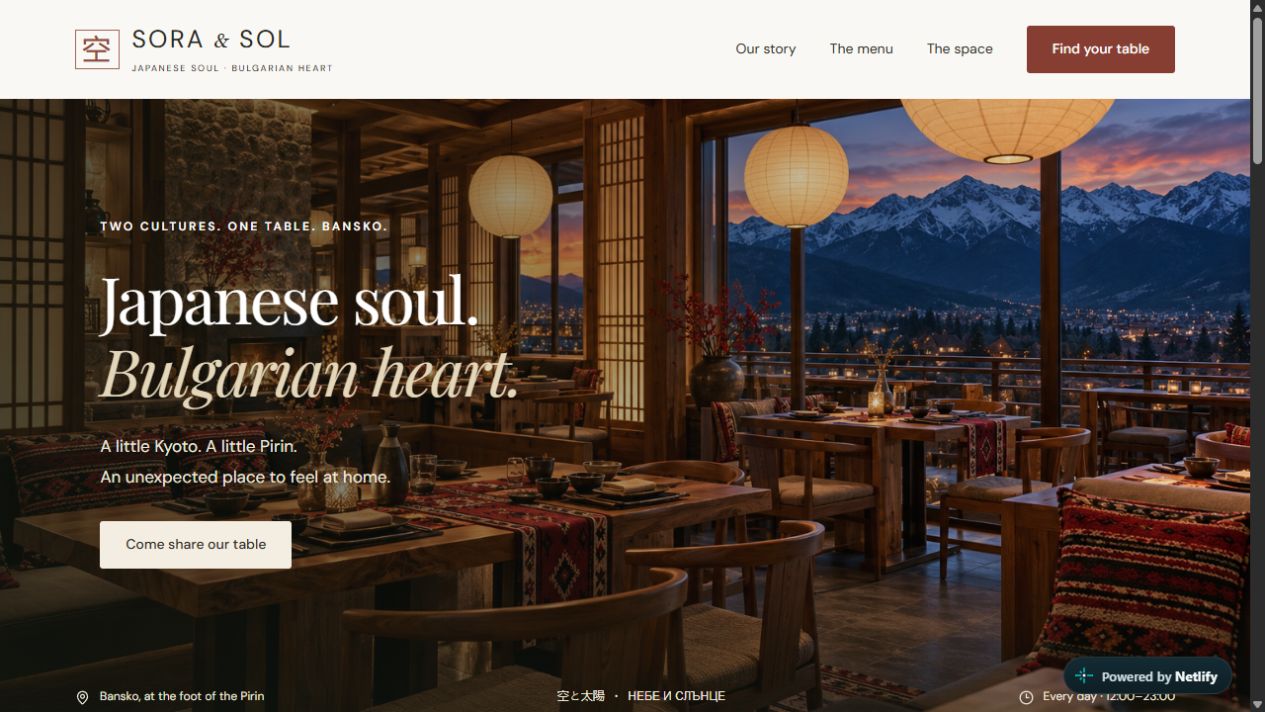
The homepage introduces the restaurant concept and gives guests a clear route to reservations.View full size ↗
The homepage introduces the restaurant concept and gives guests a clear route to reservations.
02

Choose a date, a table, and an available time

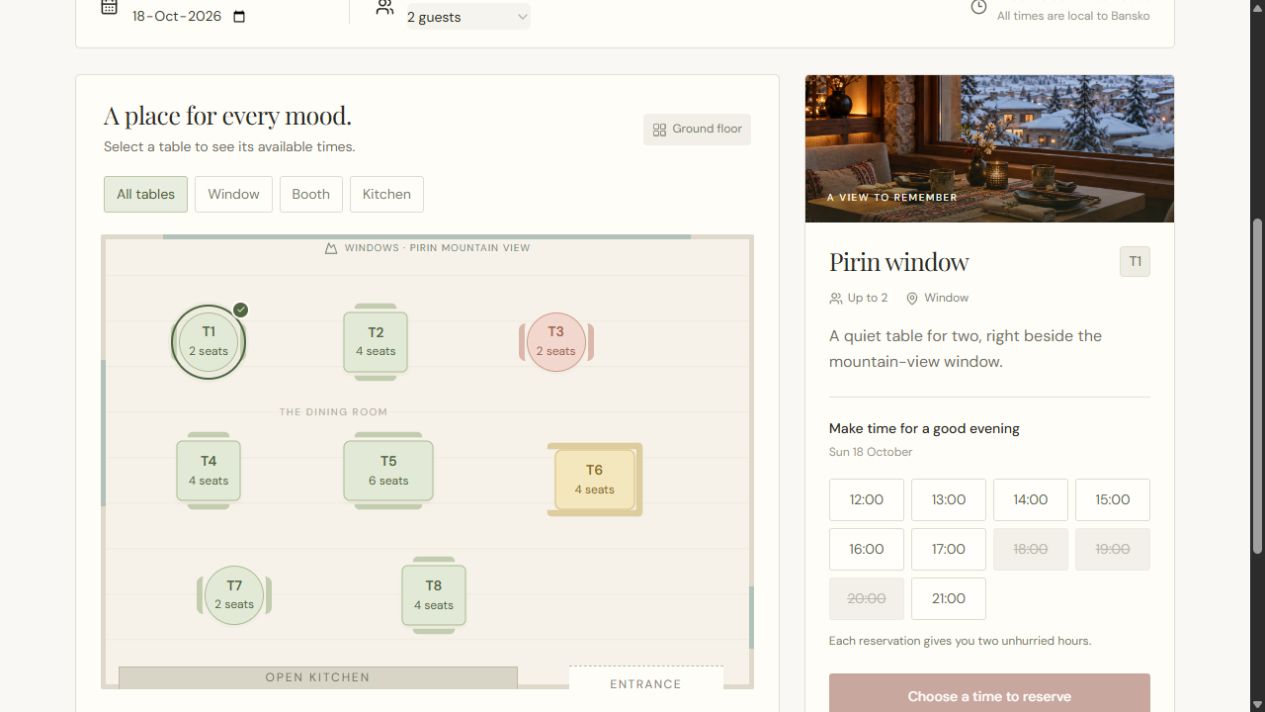
The Customer view replaces an abstract booking form with a floor plan. Compare table locations, seating capacity, and remaining time slots before choosing where to sit. Availability reflects the selected date and party size.

  1. Select a future date and your party size. Filter the room by Window, Booth, or Kitchen if you have a preferred area.
  2. Choose a table on the floor plan. Its panel shows a description, capacity, and available times. Unavailable slots are disabled, and the colour legend explains remaining availability.
  3. Select a time, open the reservation form, and enter sample contact details. Reservations last two hours, and times are shown in Bansko local time.
The customer view connects the floor plan to a selected table’s available reservation times.View full size ↗
The customer view connects the floor plan to a selected table’s available reservation times.
03

Follow the same evening from the staff side

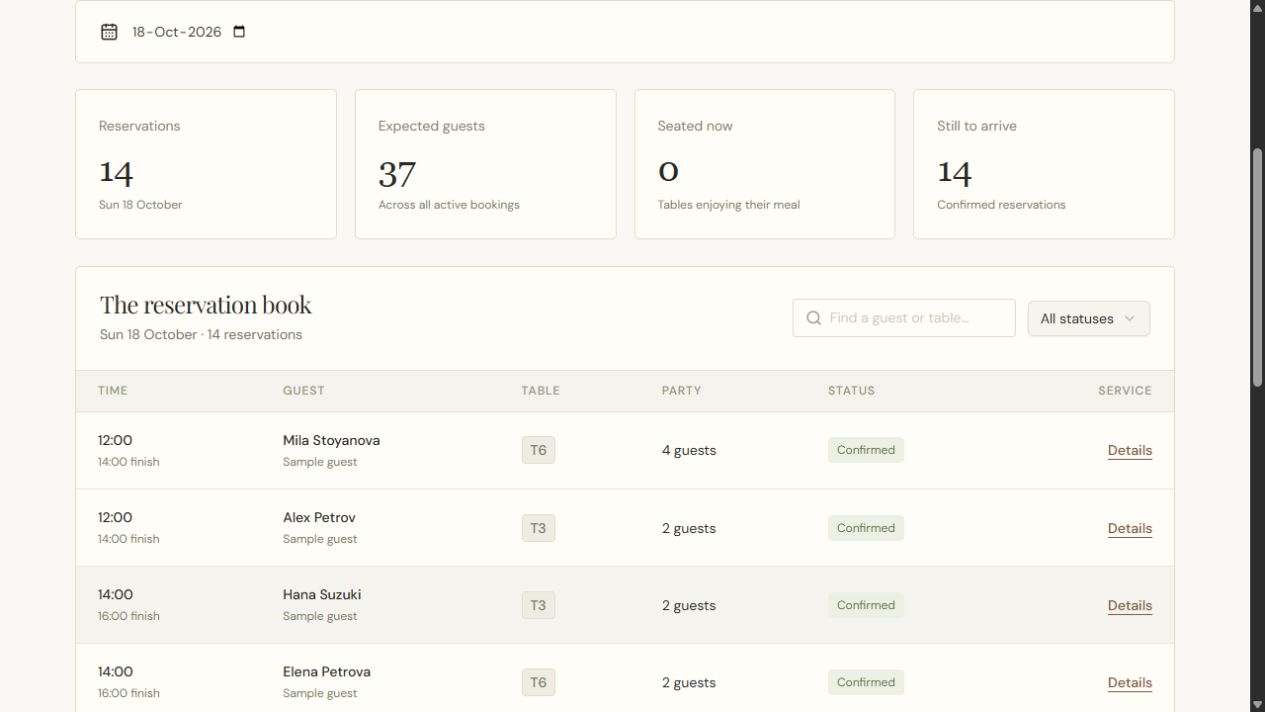
Staff reveals the reservation book for the selected date. Summary cards show reservations, expected guests, seated tables, and guests still to arrive. Each row keeps the time, guest, table, party size, and status together.

  1. Select Staff at the top of the reservation page and choose the service date you want to review.
  2. Use search and the status filter to find a reservation. Open Details to inspect guest information and the available service controls.
  3. Follow a sample booking through the service statuses. Completed visits and their recorded bills contribute to the owner’s insights.
The staff view turns the selected day’s reservations into an organised service list.View full size ↗
The staff view turns the selected day’s reservations into an organised service list.
04

Understand visits, spending, and returning guests

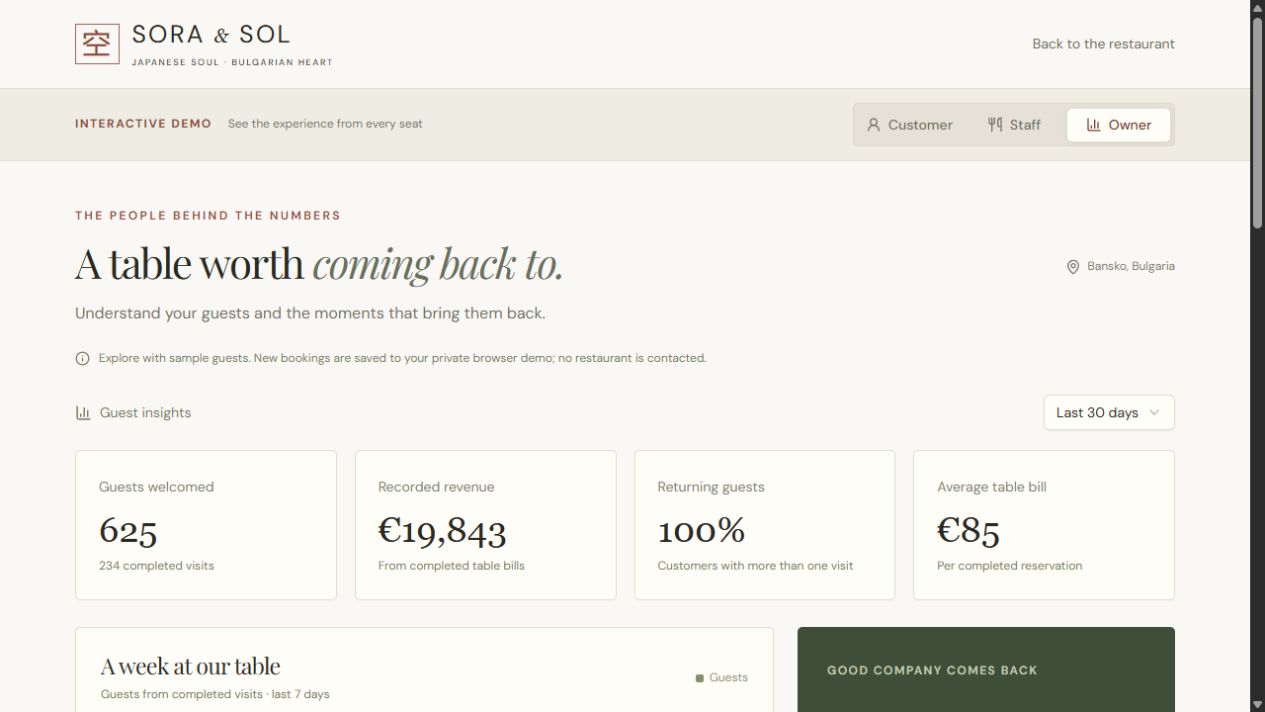
Owner shifts the focus from today’s arrivals to completed visits. It combines guest totals, recorded revenue, average table bills, a recent-visits chart, and customer history to show what happens after a booking has been fulfilled.

  1. Switch to Owner and choose an analytics date range to review completed visits in that period.
  2. Compare the summary figures with the guest chart. Revenue is based on recorded completed bills rather than future reservations or cancellations.
  3. Browse Familiar faces and open View guest to explore individual history. Sample past visits give the dashboard useful examples to inspect.
Owner insights connect completed visits with recorded revenue and returning-guest history.View full size ↗
Owner insights connect completed visits with recorded revenue and returning-guest history.

Take it for a short test drive.

Choose a future date in Customer view, find a table with an available time, and create a booking using sample details. Switch to Staff for the same date to find it, then explore Owner to compare the completed-visit insights.

Open live project ↗

Technical details

The languages, tools, hosting, and data storage used in this project.

Languages & interface
TypeScript, React, and Next.js. Tailwind CSS and UI components support the restaurant pages, reservation forms, floor plan, and dashboards.
Server & validation
Next.js API routes handle reservation operations. Zod validates request data, and availability logic checks table capacity, time slots, and booking conflicts.
Database & demo sessions
The Netlify deployment uses @netlify/database through a database adapter. A browser session cookie separates each visitor’s demo records; sample reservations and historical visits populate the views.
Tools & hosting
Published on Netlify. date-fns supports date handling; Recharts supports charts. The role views demonstrate workflows without production staff authentication or outgoing confirmation email.